Installing React Versions

When following a tutorial and starting to learn to develop websites with NodeJS one command I learned installed with NodeJS, was the npx command. You can use it to download the latest version of supporting software you wish to install. Sometimes instructions I’ve been given in the past have advised the following:

To start working on your new react app, invoke the create-react-app command, using npx create-react-app my-app-name.

When you use npx this way, the command attempts to download the latest version of the create-react-app tool if it is not already installed in your NPM development environment.

You may run into situations where you need the create-react-app command to create a project using a specific version of React. If you’re following a tutorial, you may need a specific version installed to get things going for yourself. Instead, we can use the npm init command, and point specifically to a set of scripts we will use to accompany what we feel comfortable using when we first start out.

Here is a method to replace a React development project, with React version 16, a version that from my experience, works well with many tutorials I have found in courses on UDemy. I will use terminal commands like the following to demonstrate

> My command-line terminal commands look like this.  

1: Create a folder for your project.

My project is called “myproject”. So I will create a folder: myproject

> mkdir myproject

2. Set up scaffolding and react scripts

… inside project folder

> cd myproject
> npm init react-app . --scripts-version 3.0.1

The NPM init script is shorthand for the command “npm create-react-app” (not npx!), but the nice thing is we’re allowed to append special parameters like the version of react scripts we wish to install. Be sure to include the . to specify that you want the application to be created in the then current working directory (inside myproject).

Note: Different react scripts control what files you will see in the initialized React application. Version 3.0.1 contains a serviceWorker.js file, for instance.

3. Remove node_modules from your project

… after the init command finishes.

node_modules will contain elements unnecessary to the development of your app after the next few steps are completed, and will get in the way of installing the correct version of the app. It could take some time to perform this operation.

I’d recommend sending it to the Recycle Bin using a filesystem explorer, like Windows Explorer, or Apple Finder, or Nautilus, so that you can view progress of commands like this. We’re ready to finish the task

4. Install the react version you want in your project

> npm install --save react@16.8.6 # to install react version 16.8.6
> npm install --save react-dom^16.8.6 # to install react-dom at least 16.8.6

Running these two commands (use the text before the #’s) installs the two react packages that work together to support a basic React app. I chose to install react version 16.8.6, and react-dom version at least 16.8.6.

Good to go. You’re ready to begin development.

You can now install all the other packages that help you develop good apps.
About

On this site, I will post topics that I believe will be useful for useful instruction in the future. In the past 6 months I have logged over 200 hours of learning how to build front-end websites in Node.js and React. I’ve taken in over 50 hours of lecture time learning and developing backends in both Python and Java using Spring and Django.

While that may not sound impressive, the notes I’ve taken on the subject will be useful to a successful developer looking back, and to him that wishes to build the second full-stack application better than his first.

Nuances in tech are worth writing down and sharing with others.

Rules of State

React is a JavaScript “framework” that helps developers wrap together content, structure, and style. Using React, front-end web developers can bring in other JavaScript libraries old and new, import their functionality, and expect to obtain websites with moving and versatile units on screen.

At the base of all these moving assets, there is a concept called component “state.” Component state can consist of many defined variables, and represents variables that change as the interaction context changes. As the way the interface looks changes, developers use “state variables” to compute new looks to the screen. Inputs from the user drive the app’s state to move and change the way the app looks.

To developers out there modifying the state variable with authored programs there are “state rules” that one should follow:

The React “state variable” should only be accessed from within React class-based components.

File App.js

class App { 
class App extends React.Component {
    constructor(props) { 
        this.state = {vari : ''}  
    }
    render() { 
    ...
    }
}

App.js represents a class based component. React component state variables, such as “vari” should only be initialized from within a React class-based component.

2. Don’t confuse component state and “props”

Components in React also have properties that are assigned to them. When properties are added to a component instance, (like variable “someProp”) and those props are passed to other instances, props can act as parameters that “feed in” to add extra information to that new instance. But React Component “state” is a special variable, and should not be assigned a value the conventional way – by that I mean, in the way normal values are assigned via “variable = value”.

You should instead use the following two methods to assign state: via a constructor-like method, or via the special setState instance method given to every React asset. Here are two examples:

a) via some constructor like method.

(File App.js)
constructor ( ) {
this.state = {myVar: null}
}
render() { … }

or

File(App.js)
constructor() {
}
state = {myVar : null}
render() { … }

b) via the setState method.

File App.js

class App extends React.Component {
    myMethod() { 
       this.setState({myVar : position.coords.latitude})
    }
}

3. Updating state causes the component to re-render

When the state is changed, the render() function can re-render the page with updated JavaScript properties. Conditionals that depend on the newly set state variables can be used as tools to return new JSX in various scenarios.

Combining all this together, we can come up with an example. This render statement displays information about the latitude of the user based on a value stored in a state variable.

render() {
    if(this.state.myVar) { 
        return <div>Something got clicked!</div>
    }
    return (
        <div>
            <input type="button" value="Click" onClick={this.buttonWasClicked}/>
            <br/><img src={spinnerGif} /> 
            <br/>Please click the button
        </div>
    )
}

{spinnerGif} refers to an imported link to a spinner gif image, although it could be a different image too.

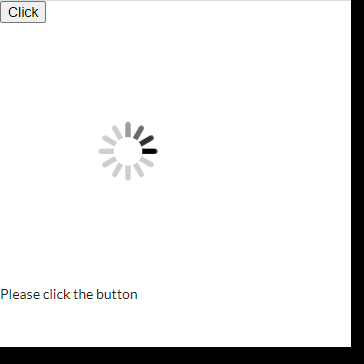
Here is a sample snapshot of how this page looks at first.

Having done nothing, we will see this image on the page. There is a variable in the if condition named “myVar”, and that will be the variable we use to change the look of the page. Here is the code that causes the change:

class App extends React.Component { 
    constructor(props) { 
        super(props);
        this.state = {myVar: null}
    }
    buttonWasClicked = (e) => { 
        this.setState({myVar : true})
    }
render() { 
...
}

When we click the button, we call buttonWasClicked, a function we define just below the constructor, that changes myVar to true. Since that variable is part of component state, having changed that variable, the change will quickly rerender the page. Upon re-render, we will enter the second if condition:

return <div>Something got clicked!</div>

…and the page will change to look like this:

That completes our explanation of rules of Component State in React.js.

Maven Dependencies and Big Projects (Page 1)

(Steps to upload a project to Maven Central)

Reason” With drive, and some further instruction, a person can move what one has in Java code to the OSSRH central repositories, or the system of internet links that makes project setup easy for others. Once another person have “Apache Maven” installed, he only needs a “group identifier” and “artifact identifier” pasted into a file, and that file can be read to download and manage your entire project on their computers via the use of command line commands. Sounds cool. If only there weren’t so many steps…

So that I don’t forget, I will write these down.

Before we get there, we need to set up these big projects, so that others can access them. We have just one repository. It has to fit a lot of minor projects in them, and these projects may need to communicate with each other at some point.

I will talk about the steps I would take to make big multi-module Maven projects, after I made it happen the first time in August 2021. The end goal is to build a set of Spring projects linked together by Maven POM files declaring these projects. I want to be able to share the code between the projects. We’re using Eclipse 2020-09 for this tutorial. We’re going to assume that the correct Java JDK useful for compiling the code has been downloaded and installed to your machine. By the end of all this tutorial, we will have a multi-module Maven project ready to be customized for serving a Java Spring Web Page.

  1. Create a brand-new Workspace

The first step is to start fresh with a new workspace where a project’s information will go. Name it after the java version of all projects to be initialized within.

Create a new folder on your hard disk. It need not be completely empty, but it cannot already have a workspace data folder (such as .metadata) inside of it.

Now put the specific workspace for your project inside this folder (call it multimod-mavenspace) for instance.

Open eclipse.exe and type the location of that folder into the Eclipse workspace launcher.

Step 2. Create a folder and start and complete Eclipse New Maven Project Wizard

Inside this workspace, create a new maven project at a location called <project_loc>, a folder with no content inside where you can freely place and manage your code via the Eclipse IDE. Later in your eclipse project you will add in XML elements and attributes (called “maven coordinates”) similar to these shown in the Figure below. I want to build a web application written using Java server code, so my coordinates will take on the idea of describing such an application.

We wish to create this file in the Figure.

<project>
   <modelVersion>4.0.0</modelVersion>
   <groupId>com.jsaddlercs.multimodproject</groupId>
   <artifactId>multimodproject</artifactId>
   <packaging>pom</packaging> 

   <name>multimodproject</name>
   <description>Multi Module Project for Java Server App</description>
</project>

We wish to create this file, but to do so we’ll need to navigate the Eclipse GUI.

  • In the file menu at the top left of the Eclipse window, Open up [File] > [New] > [Project].
  • Under the “Select a Wizard” window, click the “Maven” Dropdown, then click
    [Maven Project]
  • Eclipse has a “Create a simple project” checkbox option that will be useful to us. Ensure it is checked
  • Ensure “use Default workspace location” is unchecked, and In the “Location:” field, choose <project_loc> as a location. Make sure you place the exact full pathname of the folder you want your pom.xml file and the rest of your work for this tutorial to land.
  • Click <Next>

You should now be in the Wizard window entitled: “New Maven Project”

  • Now

These coordinates will help us down the road. the stems of artifactId, groupId, are going to become of major use to us. Note we choose artifactId and the ending stem of groupid to be the same. For now this is my policy, but it is not required.


Model Version: 4.0.0
groupId: com.jsaddlercs.multimodproject
artifactId: multimodproject
name: multimodproject
description: Multi Module Project for Java Server App

Note that the packaging is set to “pom” in the figure (can be done after the wizard is closed). This is also very important. This project we are dealing with now is a project without code, but that allows us to add code later that will be important.

Remember, the goal is to have:

<project>
   <modelVersion>4.0.0</modelVersion>
   <groupId>com.jsaddlercs.multimodproject</groupId>
   <artifactId>multimodproject</artifactId>
   <packaging>pom</packaging> 

   <name>multimodproject</name>
   <description>Multi Module Project for Java Server App</description>
</project>
  • This is also an acceptable way of declaring the project element at the top. Eclipse can use this namespace information to help ensure correctness in named POM elements you define later.
<project xmlns="http://maven.apache.org/POM/4.0.0" 
xmlns:xsi="http://www.w3.org/2001/XMLSchema-instance" 
xsi:schemaLocation="http://maven.apache.org/POM/4.0.0 https://maven.apache.org/xsd/maven-4.0.0.xsd">

3. Maven requires that we add pieces and bits to the XML files in our project, to make coding and setup a lot easier. Next time.

Disappearing Code

The objective of my work with Xerces XML parser is to generate analyses that count the instances of certain attributes found in source Java and C++ code. This can be done without an XML parser. This can easily be done by seeking out characters using a search tool (CTRL + F), and/or counting these manually in each of my 100 files I need to analyze. This can actually be done on the text file containing the source code itself.

However, I’m very interested in the structure of how developers write code as well, and I want to be sure I’m able to count where attributes appear in “odd spots.” The goal of my study is to research “how understandable code pages is to developers”, and the nice thing about the research I’ve collected is that there are many examples. To do that, I could count how many symbols appear, how many characters appear on a line. But I could also consider how deeply nested the most important symbols of a code snippet are.

Check this out. Both these blocks have a string toReturn, a list of characters in a string. It may be difficult to determine what this block is doing.

File file = new File(rawPath);
String toReturn = file.getPath();
toReturn = 
  toReturn.substring(0,toReturn.lastIndexOf(File.separatorChar)+1);
return toReturn;

Now check out this code:

for(int i = 0; i < line.length; i++) {
	if(inside == false) {
	    if(line[i] == ',') 
			toReturn.add("");
		else 
			toReturn.set(toReturn.size()-1, toReturn.getLast() + line[i]);
	}
    else { 
	    if(line[i] == '"') {
		    inside = false;
        }
    }
}

Both these blocks have a string toReturn, a list of characters in a string. What the readers of the second block might find concerning is the depth at which we find the most important code of this method happening. We need to look inside a loop, an “if” block, and finally inside a method call to find the action necessary to understand what is being done to this all important string.

While knowing that toReturn is an important thing inside this code block to consider, it is not enough to know that toReturn is here to gauge the difficulty of understanding this code block. It is more important to realize that the depth a person must go to find important information, may make the block more elusive to helping people gain full understanding.

Every block in this design should be visible in our analysis. We can’t stop at the top level, and we can’t omit what’s inside each if statement or we’ll miss the important parts.

This omission is what I came across when using the Java JAXB Xerces parser. Something akin to these two examples below for the code snippets above.

File file = ???
String toReturn = ???
toReturn = 
  toReturn.substring(??,??);

The question marks demonstrate where data was missing. Something you notice from this parser as compared to the “raw” parser is that there is a step that creates the XML file in memory, and a different stage when the programmer can view each element or attribute read in. Just noting that the code file is read in, can allow one to completely miss these details until the point where the data need be used, as in the diagram, the question marks represent times where the read stage didn’t read content as intended from the XML file — where the “programmer view” stage turns up results from the code that have disappeared from the translation.

The solution, go back to the schema part of my XML file, and see what went wrong in generating the correct code to achieve the proper read. There is a middle step involved referred to in the post Schema where the code for reading in these files is generated. In previous iterations of using this method: generating new XML reader code, finding surprises when viewing the results, returning to step 1 – this was the route to take. This process takes time. Too much time.

A Spin-off Effort

It’s time to build an XML processor that will have me skip some of the hardships involved with generating new code. If only I could immediately after the read see exactly what was being worked with in memory, I could do damage on my research faster. Perhaps one that could,

  • for each element in the XML document
    1. organize the returned results as pieces of the file in a predictable order
    2. allow me to view pieces in that order
    3. treat XML the element and the element attribute the same as we iterate
    4. give information as to which type I’m dealing with at the moment

The root in an XML document is the “outer rim” of the text file, and the branches from root are the elements and text that you see atop the document and in the elements that are not “parented” by any other elements, meaning they are nested inside no other XML elements. The “intermediate nodes” are parts of your XML that are “parented” by other XML nodes.

The idea is to support predictable and implicit adoption: where in the code I write in Java or C++, I have the option of making deeper leaps into the file beyond the root branches, or simply completing what I find important to the process atop one root branch and moving on to other branches I find more important. The concept of branches, roots, and trees is covered in computer science curriculums I’ve taught in the past. It’s a concept of Data Structures … it’s a concept I understand and can relate to. I have prescribed steps I can use and build into a solution of my own that can make use of roots and branches.

Using my own concept of trees, I can help avoid code disappearing on me in my analyses. The idea is to use Breadth First Search, and an idea called the Visitor Pattern. Let’s move on to the next step, writing the code.

XML Schema

The hardest part is the schema grammar. A schema grammar for a code file would have to look something like:

For a declaration statement:

DeclStmt
|-  Decl
    |- Specifier (*A) 
    |- Type
    |- Name
    |- Init
       |- Expr
          ...expression
       

But for some reason at point *A, I get nothing from my automated Java XML parser. I’m able to find the “DeclStmt” declaration but not the Decl.

This bug led to 70 minutes of confusion. I might be led to change the namespace of all the entities of the files to see if that works best to deal with this one problem.

Fixing this will involve a few steps: generating new XML reader code, finding surprises when viewing the results, returning to step 1. XML reader code is generated using an XML Schema file, where the code author takes meticulous steps to describe how an XML file is supposed to look. It may look like this:

<schema>
   <complexType name="document">
     <sequence><element name="decl_stmt" type="DeclStmtType"></sequence>
   </complexType>
   <complexType name="DeclStmtType"> 
     <sequence><element name="decl" type="DeclType"></sequence>
   </complexType>
   <complexType name="DeclType">
     <sequence>
        <element name="specifier" type="string"/>
        <element name="type" type="string"/>
        <element name="name" type="string"/>
        <element name="init" type="InitType"/> 
     </sequence>
   <complexType>
</schema>

How to read this in within Java or C++ involves getting some library that can translate code like this, into Java or C++ classes that help you work with the data inside “DeclStmtType”s and “DeclType”s. These libraries:

  • take the information in the schema
  • create Java or C++ classes that resemble the value stated in “name”
    • (those words ending in “Type” in the example above)
  • nest elements that are included by reference in each named type as fields or accessor methods left behind in the class.

The programmer can take these accessor methods, and after reading other files that “are based on” the schema, the programmer can access whatever is left in memory after the parse is over. The library does seatwork required in expressing in memory the content of other XML files that follow your schema.

Provided the schema file was written correctly, the XML library should do its job and correctly represent the example source code file from the previous example as XML in memory, so I can do things like analyze it.

It Takes Skill

Sometimes, things do not go over as easy. Having to wait until after the entire file is done, and whether it matches one-to-one the intent of the schema, can hide errors – in either my intent in the design of the file, or my design of the program reading memory.

It takes skill to write Schema XSD (the file type of schema) that precisely matches your intent. If your intent does not align with what the schema reads, your generated code will not pick up the right details. I want more control over errors and what problems can come up, but I also want a different paradigm of processing called “implicit adoption”. I’ll talk about this more in my next post, but whenever a certain depth of the program is reached, I want to stop doing deeper processing, and pick up at certain points that I specify.

The Way around Xerces XML Problems in Java

More to come on a complete explanation later. This is a short journal.
A few configurations I’ve tried:

What works now:

Downloading and installing Maven.
Creating a base pom.xml file containing relevant project information should this ever get published, with just the basics.

To be Specific (from my Maven XML POM):

<modelVersion>4.0.0</modelVersion>
  <groupId>com.github.jazad136</groupId>
  <artifactId>answerml-releases</artifactId>
  <version>0.0.1-SNAPSHOT</version>
  <packaging>jar</packaging>
  
  <repositories>
		<repository>
			<id>jakarta.oss.sonatype.org</id>
			<name>Jakarta OSS Sonatype Staging</name>
			<url>https://jakarta.oss.sonatype.org/content/repositories/staging</url>
		</repository>
  </repositories>
  
  <name>answerml-releases</name>
  <description>AnswerML serialization</description>
  
  <url>http://github.com/jazad136</url>
  <licenses>
    <license>
	<name>The Apache Software License, Version 2.0</name>
	<url>http://www.apache.org/licenses/LICENSE-2.0.txt</url>
	<distribution>repo</distribution>
	</license>
  </licenses>
  
  <developers>
  <developer>
  	<id>jazad136</id>
  	<name>Jonathan A. Saddler</name>
  	<email>1129384+jazad136@users.noreply.github.com</email>
  	<organization>University of Nebraska, Lincoln, Department of Computer Science and Engineering</organization>
  	<organizationUrl>http://cse.unl.edu</organizationUrl>
  	<roles>
  	<role>maintainer</role>
  	</roles>
  	<timezone>UTC−06:00</timezone>
  	<url>http://cse.unl.edu/~jsaddle</url>
  </developer>
  </developers>
<build>
	  <plugins>
			<plugin>
			    <groupId>org.apache.maven.plugins</groupId>
			    <artifactId>maven-gpg-plugin</artifactId>
			    <version>1.6</version>
			    <executions><execution>
			        <id>sign-artifacts</id>
			        <phase>verify</phase>
			        <goals><goal>sign</goal></goals>
			    </execution></executions>
			</plugin>
			<plugin>
				<groupId>org.apache.maven.plugins</groupId>
				<artifactId>maven-source-plugin</artifactId>
				<version>3.0.1</version>
				<executions><execution>
					<id>attach-sources</id>
					<goals><goal>jar-no-fork</goal></goals>
				</execution></executions>
			</plugin>
			<plugin>
				<groupId>org.apache.maven.plugins</groupId>
				<artifactId>maven-javadoc-plugin</artifactId>
				<version>3.1.0</version>
				<executions><execution>
					<id>attach-javadocs</id>
					<goals><goal>jar</goal></goals>
				</execution></executions>
				<configuration>
		       		<doclint>none</doclint>
		    	</configuration>
			</plugin>
			<plugin>
				<groupId>org.apache.maven.plugins</groupId>
				<artifactId>maven-jar-plugin</artifactId>
				<version>3.1.1</version>
		        <configuration>
		          	<archive>
		            	  <addMavenDescriptor>false</addMavenDescriptor>
		            	  <compress>true</compress>
		            	  <manifest>
		              	    <mainClass>edu.unl.cse.efs.app.EventFlowSlicer</mainClass>
		           		    <addClasspath>true</addClasspath>
		              	    <classpathPrefix>lib</classpathPrefix>
		            	  </manifest>
		          	</archive>
		        </configuration>
			</plugin>
	        <plugin>
			  <groupId>org.apache.maven.plugins</groupId>
			  <artifactId>maven-dependency-plugin</artifactId>
			  <executions>
				  <execution>
				    <id>copy-dependencies</id>
				    <phase>prepare-package</phase>
				    <goals><goal>copy-dependencies</goal></goals>
				    <configuration>
				      <outputDirectory>${project.build.directory}/lib</outputDirectory>
				      <overWriteReleases>false</overWriteReleases>
				      <overWriteSnapshots>false</overWriteSnapshots>
				      <overWriteIfNewer>true</overWriteIfNewer>
				    </configuration>
				  </execution>
			  </executions>
			</plugin>
			
			<plugin>
			    <artifactId>maven-assembly-plugin</artifactId>
			    <version>3.1.1</version>
			    <executions><execution>
			        <id>create-distro</id>
			        <phase>package</phase>
			        <goals><goal>single</goal></goals>
			        <configuration>
				    <descriptors><descriptor>src/main/resources/assemblies/zip-with-dependencies.xml</descriptor></descriptors> 
				    </configuration>
			    </execution></executions>
			</plugin>
	</plugins>
  </build>
<dependencies>
<!-- wait for next step -->
</dependencies>


Play with the “dependencyManagement” section. Add specific dependencies to ensure the file gets read in.

To be more specific:

<dependencies>
    <dependency>
        <groupId>jakarta.xml.bind</groupId>
        <artifactId>jakarta.xml.bind-api</artifactId>
        <version>3.0.0</version>
    </dependency>
    <dependency>
	    <groupId>org.glassfish.jaxb</groupId>
	    <artifactId>jaxb-runtime</artifactId>
	    <version>3.0.0</version>
	</dependency>
</dependencies>

A few websites I’ve used:

This Question helps as it shows what JAR files are added to the module path after including the dependencies above:
https://stackoverflow.com/questions/54632086/java-11-implementation-of-jaxb-api-has-not-been-found-on-module-path-or-classpa
And Specifically this answer: https://stackoverflow.com/a/66068044/2229917

Beds

Little improvements make time spent working easier. Today, making a bed.

Follow these steps to dress it with a fitted sheet, then a boxspring bedskirt, then a flat sheet and comforter.

Dress a bed using a fitted sheet from a corner at the head opposite your dominant hand to your dominant hand’s corner. Then if the short corner does not fit, restart by rotating the fold you’re holding to the foot’s corner on your side. Immediately following, dress again the short corners at head or tail, using what’s in your hand, starting from the head down to the foot. Finally, completely tuck the sheet underneath the bed mattress at the foot of the bed.

Ensure that your bed is supported by a boxspring, before adding a bedskirt. Dress a bed using a bedskirt by first raising up the mattress from the boxspring, then resting the bedskirt on the boxspring. If your bedskirt has an imprint or a special rectangle reserved for the spot where the mattress meets contact with it, align it with the outer edge of the boxspring. Then reset the mattress, fitted-sheet-side-up.

To dress the bed using a flat sheet, start at the foot, and flap the sheet, making sure to have it come as far up to the head as possible. Do not tuck, until later in these steps.

Dress the bed with a comforter from foot to head. After dressing the bed with a bed skirt, fitted sheet, flat sheet, and comforter, ensure the bedskirt reaches the ground on all sides other than the bottom.

After all sides have been checked, check the bottom, so that while there you can begin tucking foot of the flat sheet only, then the comforter, and squaring their corners at the foot one-by-one. Square the corners at the foot by holding up the left and right edges of a sheet or comforter by its corner, up until part of the side makes a right angle with the bottom of the mattress, but without untucking. For sheets that correctly match the shape of the bed, this triangle you form at the foot should not be very long, perhaps not longer than the size of your own foot. Next, secure the bottom part of the triangle parallel to the bedside with your other hand. Tuck that corner under the side of the mattress you stand on, maintaining the triangle with your second hand. Now wrap the triangle you hold with your second hand over your first hand, tuck it in, and pull your first hand out.

Design a site like this with WordPress.com
Get started