How to fix an API Gateway Stage Deployment when Auto Deploy is Turned off
You might want the freedom to edit a route’s settings.
To do that, in terraform you’d need to create a stage that has auto deploy turned off.
When this happens, the stage that you are creating might return an error code 404 for not found.
Here is a way to fix this.
Go to the amazon web services console. console.aws.amazon.com. Once there, Navigate to the API Gateway Service page for the region that you are hosting API gateway services in.
I am using us-east-1 for this instance. So one way to get to this page is to go to: https://us-east-1.console.aws.amazon.com/apigateway/
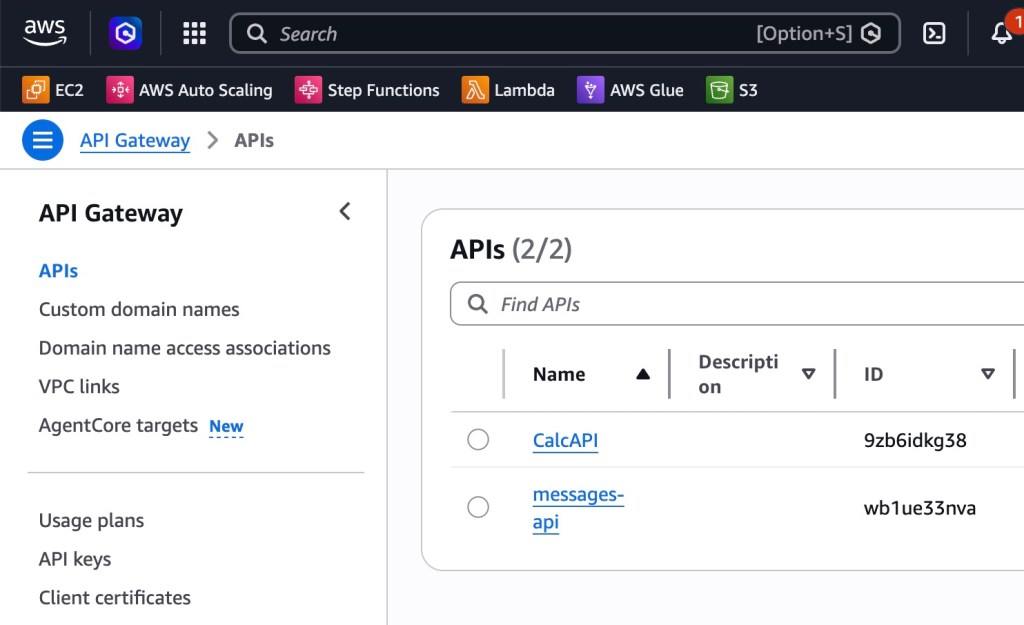
Select the API we wish to edit. My API is named messages-api, so I click the blue link for “messages-api” in the table in the column “Name”.
In the left hand side bar, Navigate to “Stages”, and note if any stages have been set up.
My terraform deployment deployed a stage called “dev”. Copy the “Invoke url” for your stage from this page, and note the route of your integration, and create an appropriate URL.
My API route URL became
<invoke-url> / <route>- or in other terms that break down the invoke-url you are given <https://<api-id>.execute-api.<region>.amazonaws.com/<stage>/<route>as in https://wb1ue33nva.execute-api.us-east-1.amazonaws.com/dev/messages
Where <invoke-url> comes from underneath “Invoke Url” on the Stages page, and “Route” comes from the route that you will serve your Lambda function’s integration at,
(check the routes in the Routes page).
Test the API integration URL by entering it into a browser URL bar if it has a GET route you see after clicking the “Routes” sidebar link. I noticed that I got a 404 not found here. I need to check how the “dev” stage has been set up after I deployed it in terraform.
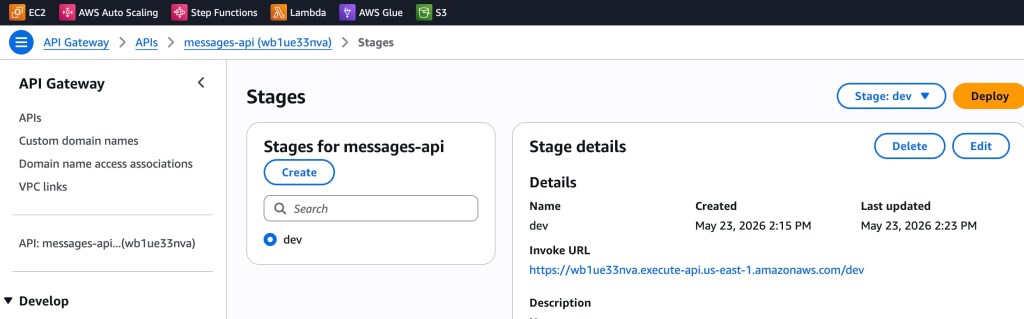
Select the “dev” stage in the left hand “Stages for messages-api” card, and underneath the “Stage details” card, click [Edit]
Underneath the “Stage Deployment” card, note that there might not be any deployments underneath this stage. This will prevent you from accessing your URL.
Return to the Stages page. Click [Deploy]
In the window that shows, select the stage we need to check on from earlier. In the “Description” field, add a description (perhaps the time of day and date). Click [Deploy].
You should receive a success message: “Successfully created deployment for messages-api. This deployment is active for dev.”
Try the API route URL again. It should invoke your lambda function and retrieve and return a response from it given proper query parameters were passed (mine didn’t require any query parameters).
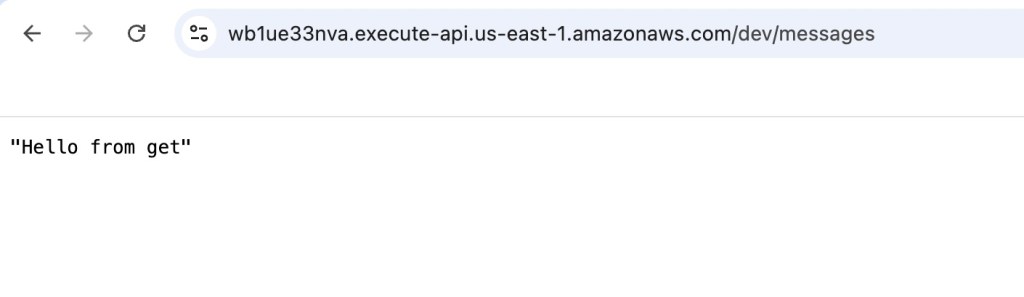
We have the desired result.

